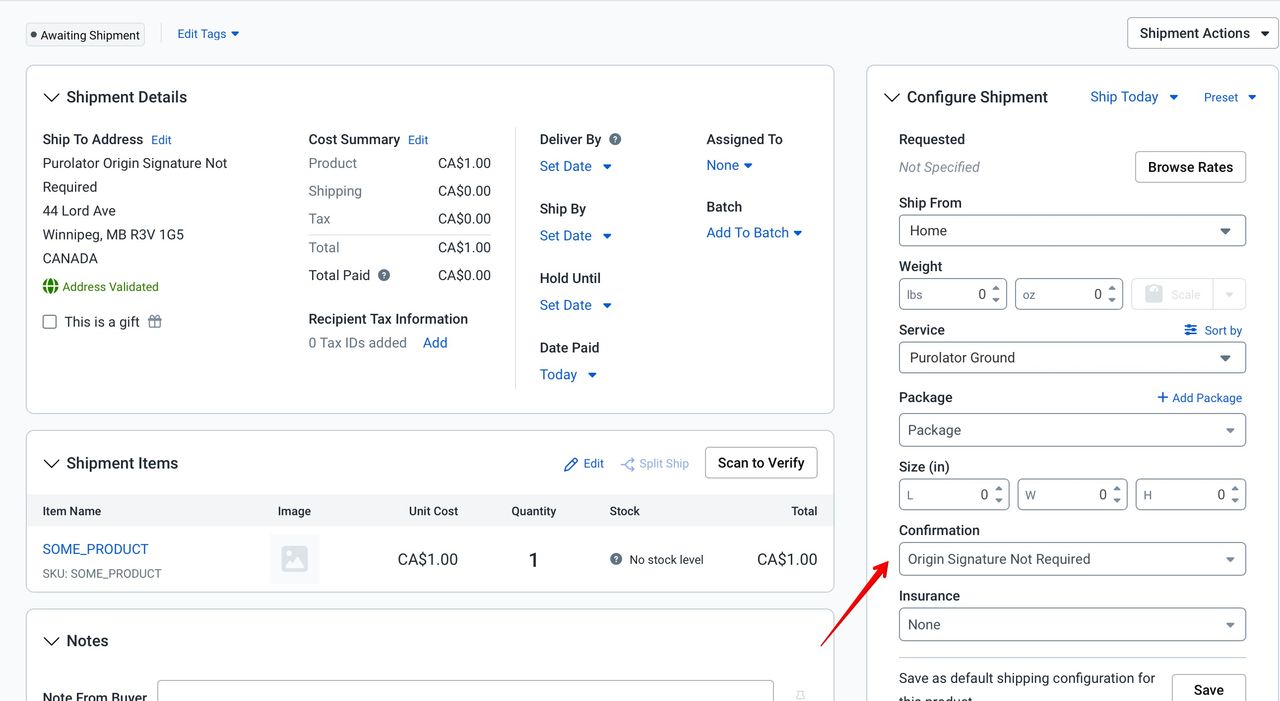
If you’ve tried setting carrier-specific confirmation options in ShipStation’s automation rules, you’ve probably hit a wall. The options are generic — and if you’re shipping with Purolator, the confirmation settings you actually need (like Origin Signature Not Required) are nowhere to be found.
Here’s the good news: they’re hidden in plain sight.
ShipStation’s generic confirmation options quietly map to Purolator-specific ones. Once you know the translation, you’re in full control:
| Purolator Option | ShipStation Generic Option |
|---|---|
| Origin Signature Not Required | Delivery |
| No Confirmation | Online |
| Residential Signature Domestic | Signature |
With this mapping in hand, let’s walk through setting up an automation rule that automatically applies Origin Signature Not Required to all your Purolator shipments.
In ShipStation, click the Settings gear icon in the upper-right corner. From the dropdown, select Automation → Automation Rules. This is your command center for all shipping logic.
Click Create a New Rule. A setup window will appear where you’ll define the conditions that trigger the rule and the action it takes.
Under the “If orders match the following criteria” section, select “Orders match these specific criteria”. From here, add the conditions that identify your Purolator shipments — for example, filtering by carrier, service type, or shipping destination.
In the Action section, set the Action Type to “Request Confirmation…”, then select “Delivery” from the dropdown.
Based on the mapping above, this tells Purolator to apply Origin Signature Not Required to every matching shipment.
Click Save, and you’re done.
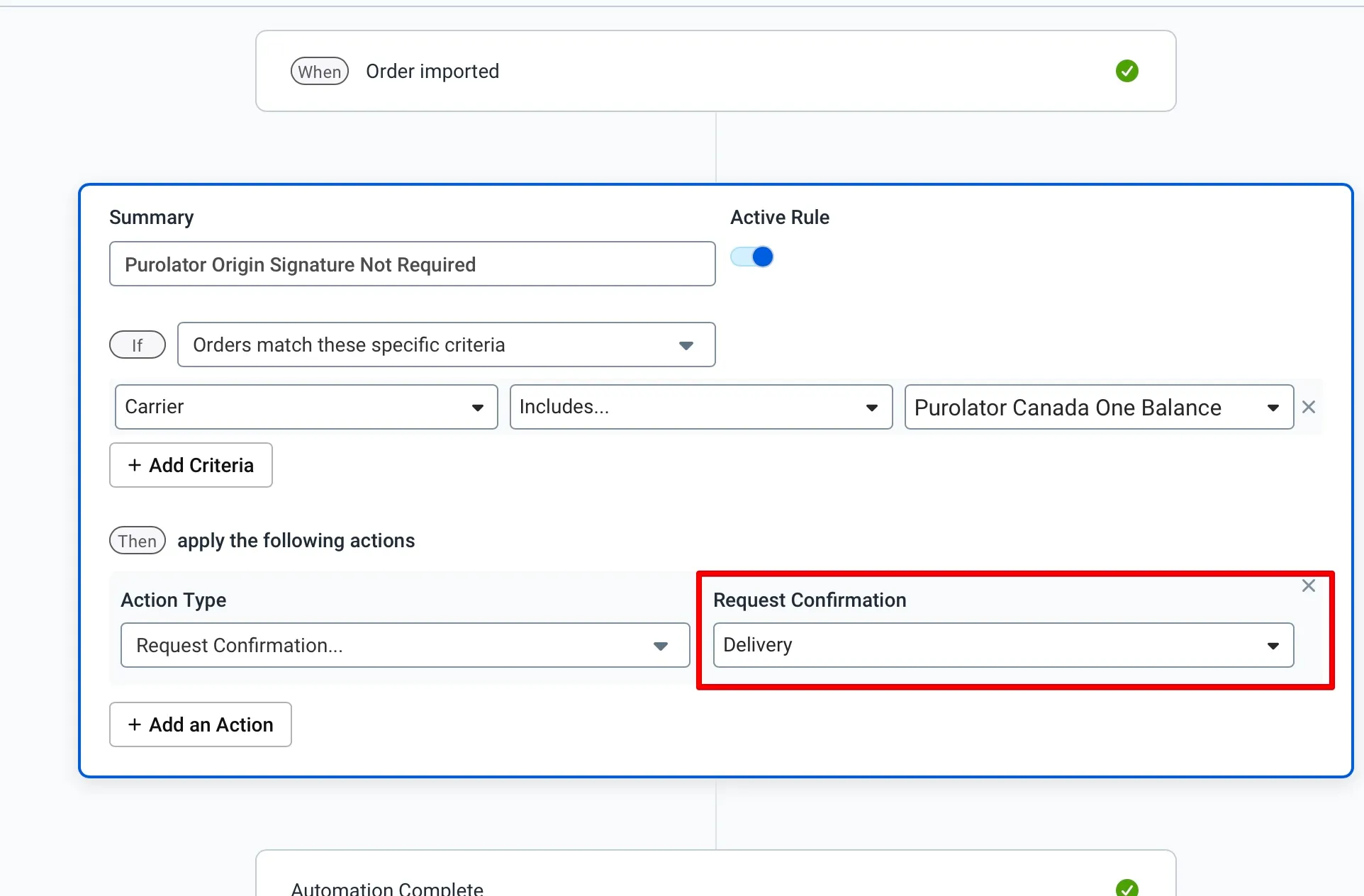
ShipStation was built to support dozens of carriers, so its automation rules use a lowest-common-denominator set of confirmation labels. Behind the scenes, however, each generic option translates to a carrier-specific instruction when the label is generated. Purolator’s API interprets “Delivery” as “Origin Signature Not Required” — ShipStation just doesn’t surface that connection in the UI.
Now that you know the mapping, you can apply the same logic to any Purolator confirmation setting you need.
Most ShipStation stores are — oversized boxes, rate programs that never get checked, and packaging that doesn't match what's actually being shipped.
String builds custom packing, rate, and shipping logic directly into your ShipStation setup, so every order ships at the real lowest cost without manual
review.
Book a free shipping audit
We'll show you exactly what's costing you, and whether String can fix it.