
How to Set Confirmation for Purolator With ShipStation Automation Rules
Published
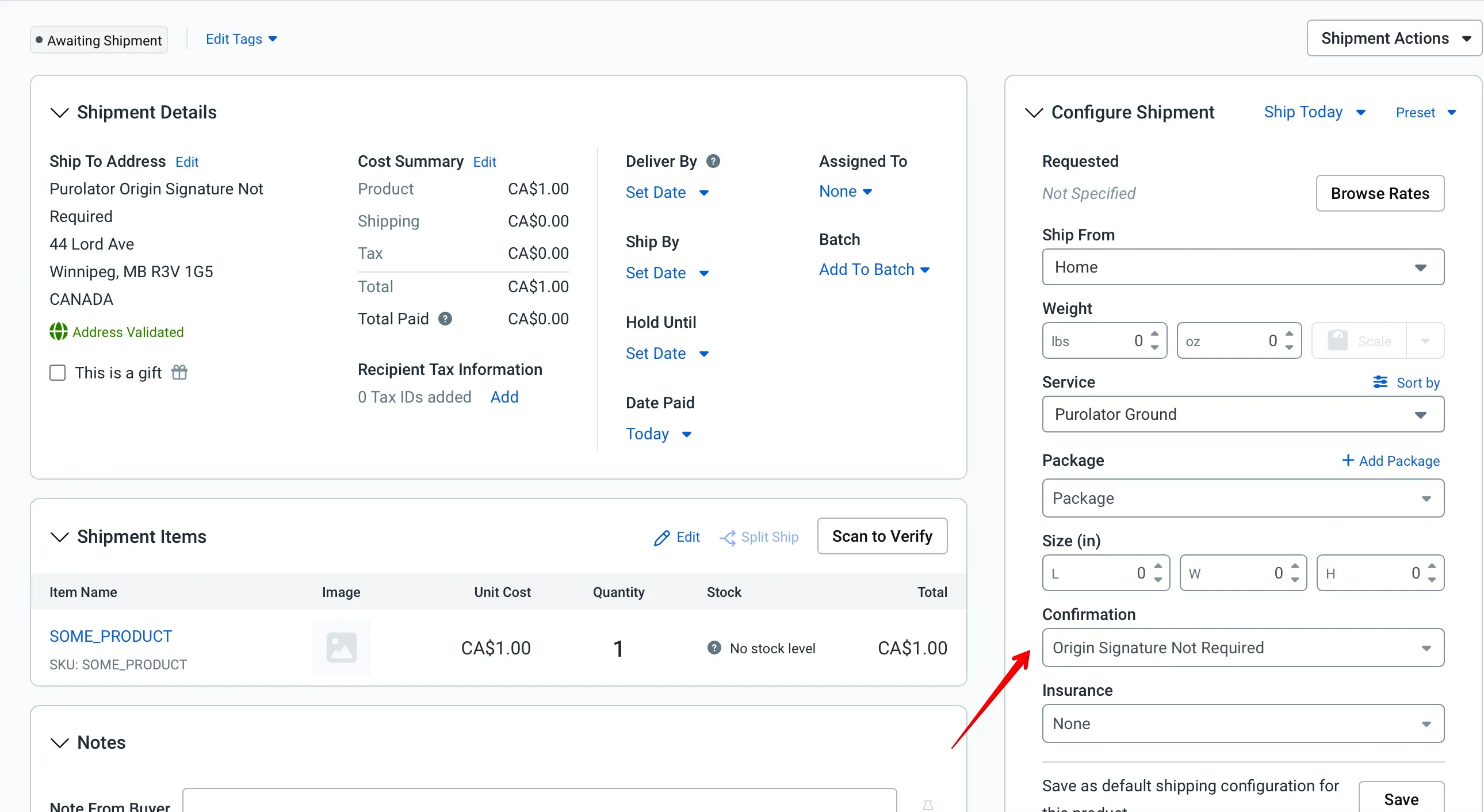
ShipStation’s automation rules present confirmation as a carrier-agnostic list, so if you’re shipping with Purolator you won’t see their own labels — Origin Signature Not Required and the rest — in the dropdown. The options you need are there, under different names.
The mapping
ShipStation’s generic confirmation options map to Purolator-specific ones. This mapping is not in ShipStation’s documentation — it is what I have observed in Canadian accounts, so verify it against a test label before you rely on it:
| Purolator Option | ShipStation Generic Option |
|---|---|
| Origin Signature Not Required | Delivery |
| No Confirmation | Online |
| Residential Signature Domestic | Signature |
Here is how to set up a rule that applies Origin Signature Not Required to Purolator shipments.
Step 1: Open Automation Rules
In ShipStation, click the Settings gear icon in the upper-right corner. From the dropdown, select Automation → Automation Rules. ## Step 2: Create a New Rule
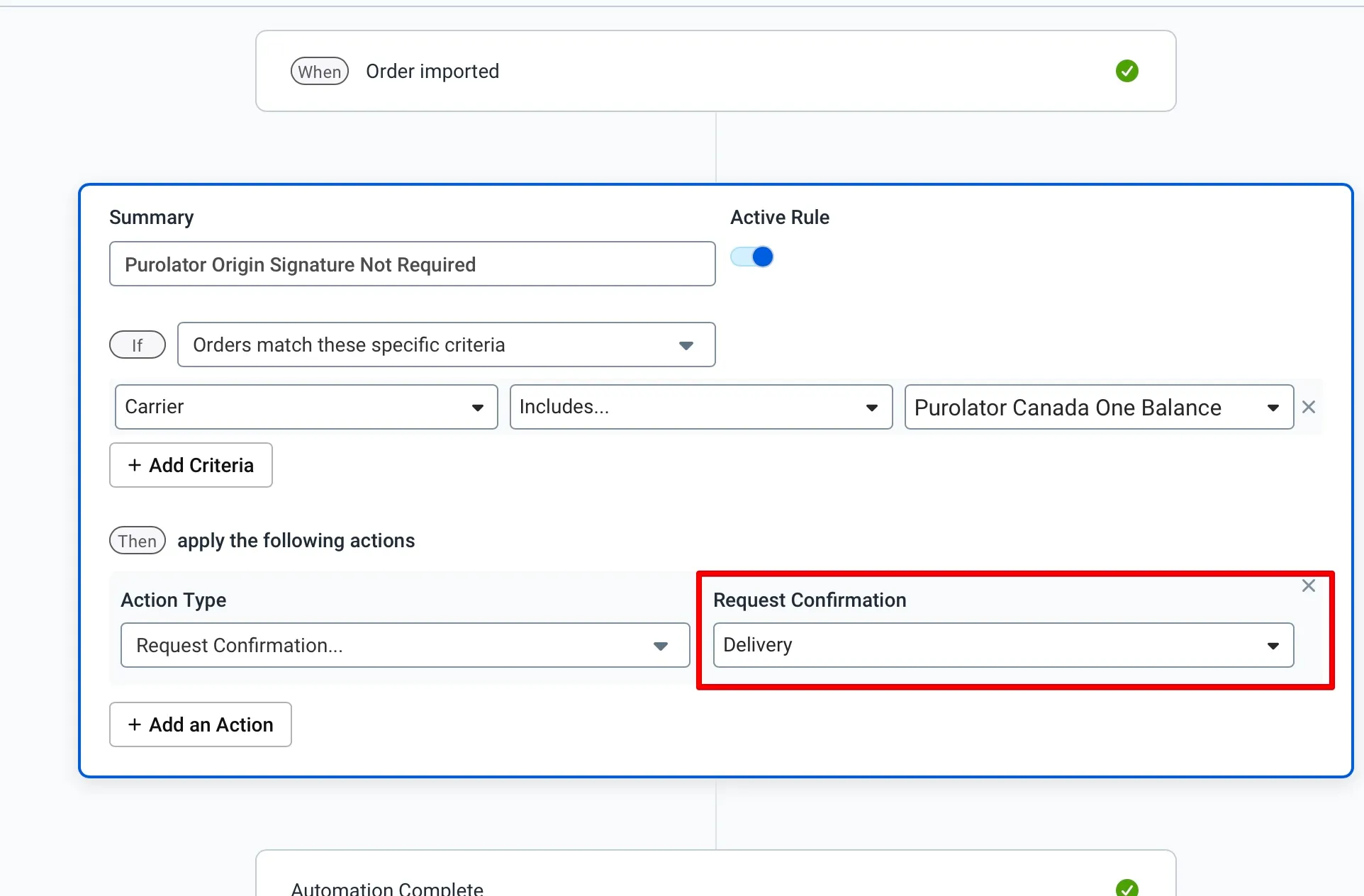
Click Create a New Rule. A setup window will appear where you’ll define the conditions that trigger the rule and the action it takes.
Step 3: Define Your Rule Conditions
Under the “If orders match the following criteria” section, select “Orders match these specific criteria”. From here, add the conditions that identify your Purolator shipments — for example, filtering by carrier, service type, or shipping destination.
Step 4: Set the Confirmation Action
In the Action section, set the Action Type to “Request Confirmation…”, then select “Delivery” from the dropdown.
Based on the mapping above, this tells Purolator to apply Origin Signature Not Required to every matching shipment.
Save the rule.
Why This Works
ShipStation was built to support dozens of carriers, so its automation rules use a lowest-common-denominator set of confirmation labels. Behind the scenes, however, each generic option translates to a carrier-specific instruction when the label is generated. In the accounts I have set this up in, “Delivery” comes out as “Origin Signature Not Required” on the Purolator label. ShipStation does not surface that connection in the UI, which is why the mapping has to be learned rather than looked up.
Now that you know the mapping, you can apply the same logic to any Purolator confirmation setting you need.
When the rule can't express it
Eight situations where the decision depends on something an automation rule cannot see.